
Where can I see all my files across projects?
Assets lists the files of every project in one place. Choose a project, then filter, sort, download or delete.
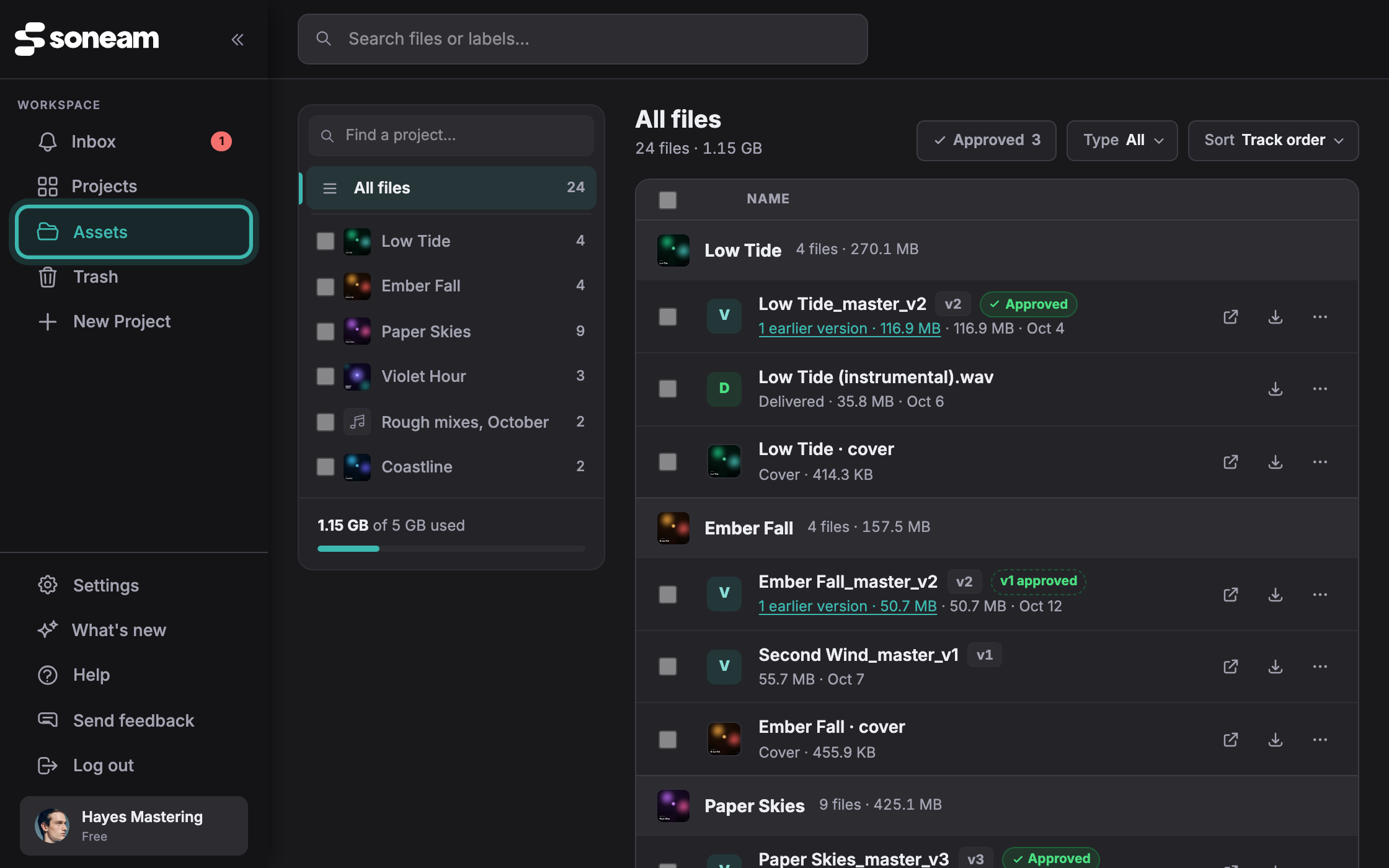
Open Assets in the sidebar. It lists every file in your account: track versions, files you added to a project, files a client sent, delivery extras and cover art.
Choose a project
Projects are listed on the left, most recently active first. Select one to see only its files, or All files to see everything grouped by project. The number beside each project is its file count, and your storage use is shown below the list.
Versions of a track
Each track appears once, as its current version. When the track has other versions, a link under the name (for example "2 earlier versions · 123.3 MB") lists them with their sizes.
Filter, sort and search
- Approved shows only versions a client has approved.
- Type narrows the list to versions, your own files, client uploads, delivered files or covers.
- Sort offers Track order, Newest, Largest and Name. Largest ranks a track by the combined size of its versions.
- The search box at the top matches file names and labels.
Download or delete
Each row has a download button, and Delete is in its ⋯ menu. To work with several files, tick their checkboxes. The selection is kept while you move between projects, and a bar at the bottom of the page offers Create project, Download and Delete.
Create project builds a new project from the selected audio; the files stay in their original projects too. The bar’s Delete removes project files, client uploads and delivery extras. It leaves versions and covers alone, which are deleted one at a time from their own row. A file in a released delivery cannot be deleted until you stop that release.
What deleting does
Deleted files go to the Trash for 30 days and count toward storage until they are permanently deleted. Deleting a track’s current version makes another version current, and the confirmation names it. Putting the deleted version back from the Trash makes it current again, unless you have since uploaded a newer version or chosen a different current version.
Not covered here? Write to support@soneam.com.