
Where do I keep session files and DDPs?
Use the project’s Files area for sessions, DDPs and supporting files, up to 50 GB each.
Keep session archives, DDPs, references, credits and other supporting files in the project’s Files area. Any file type is accepted, up to 50 GB per file, within your storage allowance.
Files stored here are separate from track versions. They are not analyzed for review playback.
-
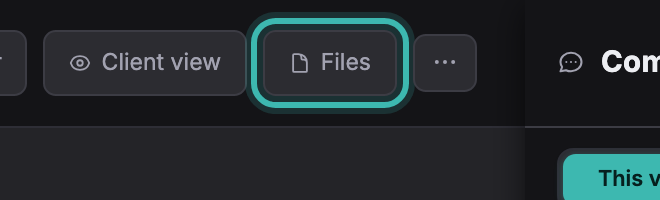
Open the project and click Files in the bar along the top.
-
Drag your files onto the drop area, or click it to pick them. Several at once is fine.

-
Give them a label if it helps you find them later, then click Upload. Large files keep going while you work elsewhere in the app.

On Pro and Studio there is no monthly upload limit; the number and total size of files are limited by your storage allowance. Free allows 1 GB of your own uploads each calendar month (UTC), counting versions, project files and delivery extras. Files a client sends through an upload link are not counted, and the monthly limit does not apply during the Pro trial.
Project assets are private to your project workspace. To share them with a client, add them to Delivery and release them. Keep a separate backup of files you need to retain.
The Files area also lists versions, client uploads and delivery files already associated with the project.
Not covered here? Write to support@soneam.com.